
Balances and activity
See available balances, posted transactions, pending items and account details in one view.
Digital banking
Online banking puts balances, transfers, bills and statements in one secure place. Here is what the service covers, what to prepare before you enroll, and where to go when access does not work as expected.
Inside the account
These are the everyday tasks members expect after a successful sign-in.
See available balances, posted transactions, pending items and account details in one view.
Move money between eligible Rockland Trust accounts and review the confirmation after each request.
Add payees, schedule one-time payments and manage recurring bills from the payment center.
Use the app to photograph the front and back of a check and submit it for review.
Open account statements, notices and tax documents without waiting for paper mail.
Choose balance, transaction or sign-in alerts so unusual activity is easier to spot.
Practical view
Most visits follow the same short rhythm: verify access, check activity, then move or pay money.
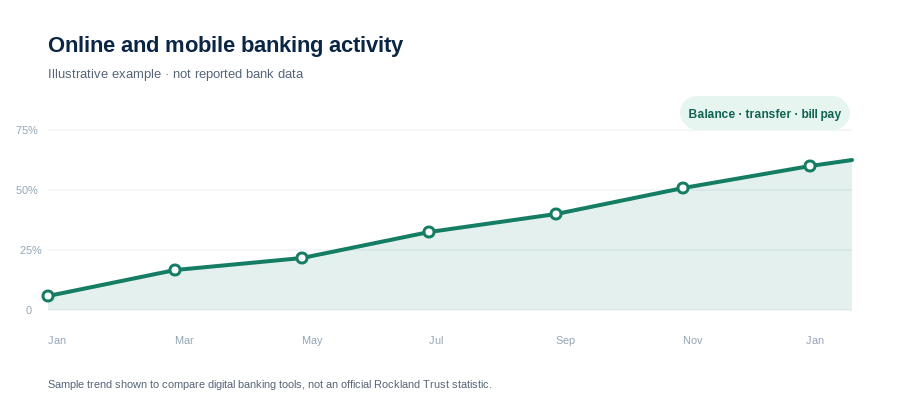
Open the account list, scan pending activity, then confirm the balance you plan to use. If a bill or transfer is due today, check the cut-off time before submitting it.

Device comparison
Both channels reach the same accounts. The differences are mostly about convenience and document work.
| Task | Desktop browser | Mobile app | Notes |
|---|---|---|---|
| Check balances | Yes | Yes | Both show posted and pending activity. |
| Transfer between accounts | Yes | Yes | Confirm the eligible accounts first. |
| Pay bills | Yes | Yes | New payees may need extra review. |
| Deposit a check | Rarely | Yes | Mobile photo deposit is app-based. |
| Download statements | Yes | Yes | PDF access depends on device settings. |
| Branch finder | Optional | Yes | Use the app for nearby ATMs and branches. |
First steps
A simple sequence keeps enrollment and the first sign-in predictable.
Confirm the address bar shows the Rockland Trust domain before you enter any personal information.
New users complete enrollment. Existing users sign in with the login ID already linked to the account.
Use a unique password and store it in a password manager rather than in a note or email.
Turn on the notifications you will actually read, then add the app for quick balances and deposits.

Bookmark the page you use and avoid login links sent by text or email. If a page asks for a password you did not expect to enter, close it and open the official site yourself.
Common questions
Enrollment starts from the official Rockland Trust online banking entry point. You confirm your identity, choose a login ID and password, and accept the access terms before the first sign-in.
Yes. The mobile app uses the same online banking credentials. After the first sign-in you can enable Face ID or fingerprint access on a trusted device.
Pending status usually means the bank is still processing the request or the receiving account has not posted it yet. Check activity again before submitting a second transfer.
A verification code or device confirmation may appear when you use a new browser, a new phone or an unusual location. That step protects the account.
Call the Customer Information Center at 508-732-7072, or use the contact options page for business and out-of-state numbers.
Use the login page for sign-in basics, or see how the mobile app handles deposits and alerts.